
In case of emergency card
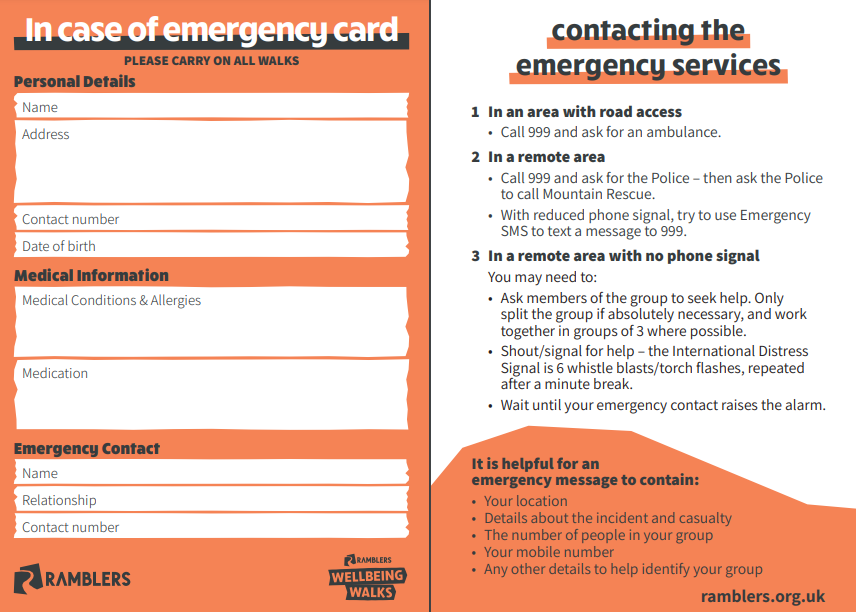
Ramblers recommends that you keep an In case of emergency card with you when you are out walking. This card shows emergency contact details and medical information which could prove vital in the event of an accident.
|
Click on one of these links |
 |
Emergency details on your phone
It is also recommended that you keep emergency contact information on your phone. In an emergency, this information can be accessed by others without them having to unlock your phone. Setting this up also increases the chances of your phone being returned to you if you lose it.
Below is a step by step guide to how to set up this information on your phone.
Apple/ios phones
- Go to Settings
- Scroll down to and open the Health app
- Tap the Summary tab.
- Tap your profile picture in the top right-hand corner.
- Under your profile picture, tap Medical ID.
- Tap Edit in the top right-hand corner.
- To make your Medical ID including Emergency Contacts available from the Lock Screen on your iPhone, turn on Show When Locked. In an emergency, this gives information to people who want to help.
- To share your Medical ID with emergency responders, turn on Share During Emergency Call. When you make a call or send a text to the emergency services on your iPhone or Apple Watch, your Medical ID will be shared with the emergency services automatically.
- Enter emergency contacts and health information, such as your date of birth, allergies and blood type.
- Tap Done.
Android phones
Due to the number of different makes of phone there is not a one method works for all. However, one of the following should work for your phone.
Option 1
- Open Settings on your android phone
- Scroll down and tap on Safety & Emergency
- For emergency contacts select Emergency Contacts. Tap on Add Contact and select the person from your contact list that you want to add. Your phone will automatically send them a text message to let them know you've added them as an emergency contact.
- To add Medical Information select Medical Information. Tapping on each field shown will bring up a text box for you to enter your information. The only exceptions to this are the Organ Donor and Blood Type fields, which will bring up a list for you to choose from. (Note: On Samsung phones, you'll need to tap the pencil icon in the upper right-hand corner to see and edit the different fields noted above.)
- At the very bottom of the Medical Information screen, you'll see a box stating, To help in an emergency, people can view this info without unlocking your device.
- All of the medical information you add to your Android phone is only saved on your service
Option 2
- Open the Settings appon your Android phone.
- Scroll down to the bottom of the page.
- Tap About phone.
- Tap Emergency information.
- Tap Add information.
- Enter all of your medical info.
- Tap the back arrowto go back
- Tap Add contactto add emergency contacts.
- Select the contact you want to add.
- If you want to add more, repeat this process over and over again until you're done.
- To access your emergency information: Hold down your phone's power button, then tap Emergency.
- Tap Emergency information.
- Tap that same button again.
- You'll be taken to a new page that shows all of your emergency info — both contacts and any medical information you’ve entered.
Option 3 - Samsung Galaxy
- Open the Contacts app. Alternatively, you can open the Phone Dialer and select Contacts from the bottom tabs.
- On top of the contacts screen, you’ll see yourself listed. Click on your own contact.
- At the end, you’ll see a section called Emergency Info. Under that, there will be two options — Medical Info and Emergency contacts.
- Click on Emergency contacts. Tap on the edit icon and you’ll be able to add contacts to the list. The contacts added in this list can be called without unlocking your smartphone.
- Any medical information you add will be visible on the lock screen. This is to ensure that if something happens to you, first responders can see the required information.
Google Pixel phones
- Open the Settings appon your Pixel phone.
- Scroll down and tap Safety and Emergency.
- Tap Emergency Contacts and select one or more people from your contacts list.
- Optionally tap Medical Information to provide any information that may be relevant to emergency services
- Optionally tap Emergency Location Service and then tap the enable button. In some regions this will provide first responders with your exact location.
- Other people can now access your emergency information by tapping Emergency on your phone’s lock screen.
If your make of phone is not listed above, then try doing a Google search on:
"How do I setup ICE on my {make of phone}"